Import messages from spreadsheet files
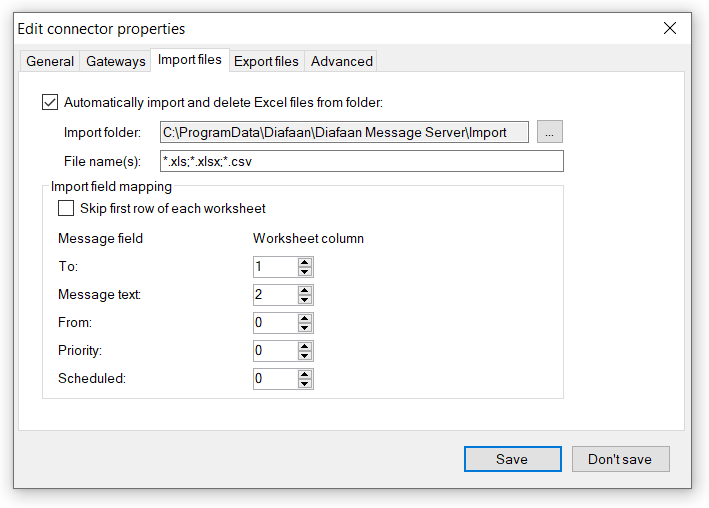
Messages can be automatically imported from one or more spreadsheet files in a specific folder. After importing the messages from the spreadsheet file, the file is automatically removed.
The file name(s) setting can contain a list of file names that are imported, separated by semicolons. The file names may contain wildcards (* and ?). The Excel Connector can import three file types, the Excel file formats .XLS and .XLSX and the generic .CSV format.
Each row in each worksheet of the spreadsheet file is imported as one message (or multiple messages if the To field contains multiple numbers separated by comma's) and the message fields are filled in according to the import field mapping settings. Additional messages fields can be mapped to worksheet columns in the advanced settings of the Excel Connector.
Import messages manually from a spreadsheet file
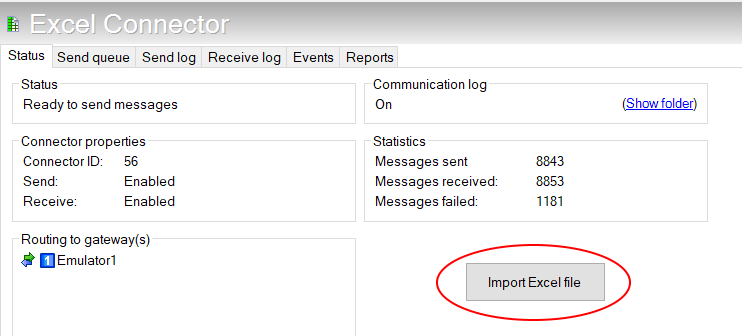
The 'Import Excel file' button in the status window of the Excel Connector can be used to manually import messages from a single spreadsheet file. Unlike automatic imports the imported file is not removed after it is read.
Export received messages and message logs to .CSV files
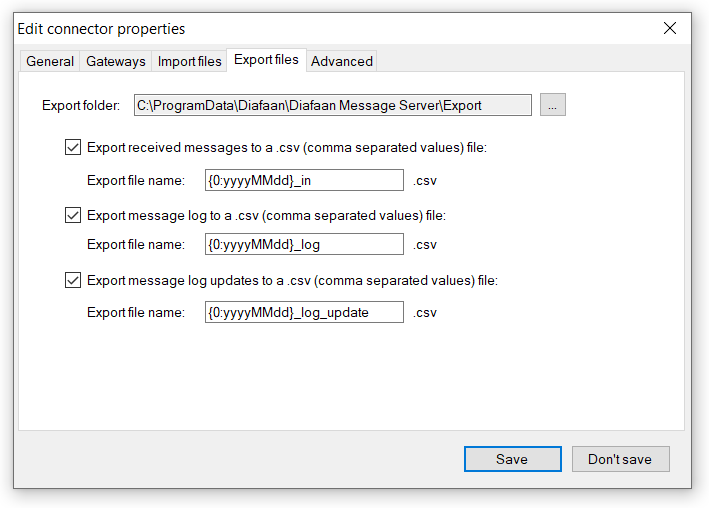
The Excel Connector can export received SMS messages, send log messages and send log updates (delivery reports and delivery failures) to .CSV files. You can set the export folder where files are saved and the names of the three export files. The file names can contain date and time information in the form of {0:yyyyMMdd} so that the messages are written to different files dependent of the date. With the default names a new file is made each day. If you want to create a new file each month you can use {0:yyyyMM} instead. The message fields that are exported can be changed in the advanced settings.
By default, the Excel Connector only exports the send log messages that are sent from the Excel Connector itself. There is an option in the general setting to log all messages sent with Diafaan SMS Server to a specific Excel Connector or SQL Connector.
Advanced properties
LogCommunicationToFile
Log all import and export actions from this connector to a file.
MaximumBatchSize
The maximum number of database records this connector will process in one batch. If this value is higher than one and a number of messages are sent at the same time, the connector loads multiple messages concurrently.
SendPriority
Default message send priority. A higher number ensures that messages are placed higher in the message send queue and are sent before messages with a lower priority.
NumberTemplate
The number template can be used to translate the number from one format to another.
For more information see Use number templates.
NumberWhiteList
List of allowed destination numbers (to address) for outgoing SMS messages, messages to other numbers are blocked. When the list does not have any items, messages to all numbers are allowed.
For more information about the white list and black list format see: Use white lists and black lists.
EnableHTTPCallbacks
Enable or disable HTTP callbacks for this connector. This option is only available when the HTTP callback option is enabled in the general options.
ExportMessageInFieldList
The list of message fields of received messages that are written to the .CSV file.
ExportMessageLogFieldList
The list of message fields of the send log that are written to the .CSV file.
ExportMessageLogUpdateFieldList
The list of message fields of the send log updates (delivery reports and delivery failures) that are written to the .CSV file.
FieldMapGateway
Worksheet column number in the import files that contains the (list of) gateway(s) that can send the messages, set to 0 to disable.
FieldMapMessageGUID
Worksheet column number in the import files that contains the message GUID, set to 0 to disable.
FieldMapMessageInfo
Worksheet column number in the import files that contains the message info, set to 0 to disable.
FieldMapMessageType
Worksheet column number in the import files that contains the message type, set to 0 to disable.
ImportFilesCheckInterval
Interval time to check the import folder for new Excel files (in seconds).